How-to
From install to a finished stakeholder map
The whole flow, in order, with the decisions you have to make along the way. If you are a HubSpot admin, steps 1–3 are yours; if you are a sales rep, start at step 4.
Before you start. You need a HubSpot account with a Super Admin who can authorise apps, contacts that are associated with the company records you want to map, and — for the group view — parent/child associations between your company records. Rehnable does not need any data prepared in advance beyond that.
Install Rehnable
A Super Admin installs Rehnable from its HubSpot App Marketplace listing and reviews the permissions HubSpot presents. Rehnable asks only for what it uses: read contacts, companies and deals; write contacts (that covers the reporting-line associations and the team property); create its own contact property; create static lists; read the portal's users and owners for seat assignment and task assignees; and write company associations for the group view.
Approve, and HubSpot redirects back with the install complete. There is no separate Rehnable account to create and no password to set — HubSpot is the identity provider for everyone in your portal.
Approve the whole permission set. If a permission is declined, the feature that depends on it fails at the moment you use it. Rehnable tells you which permission is missing rather than failing silently, but the fix is a re-install with the full set.
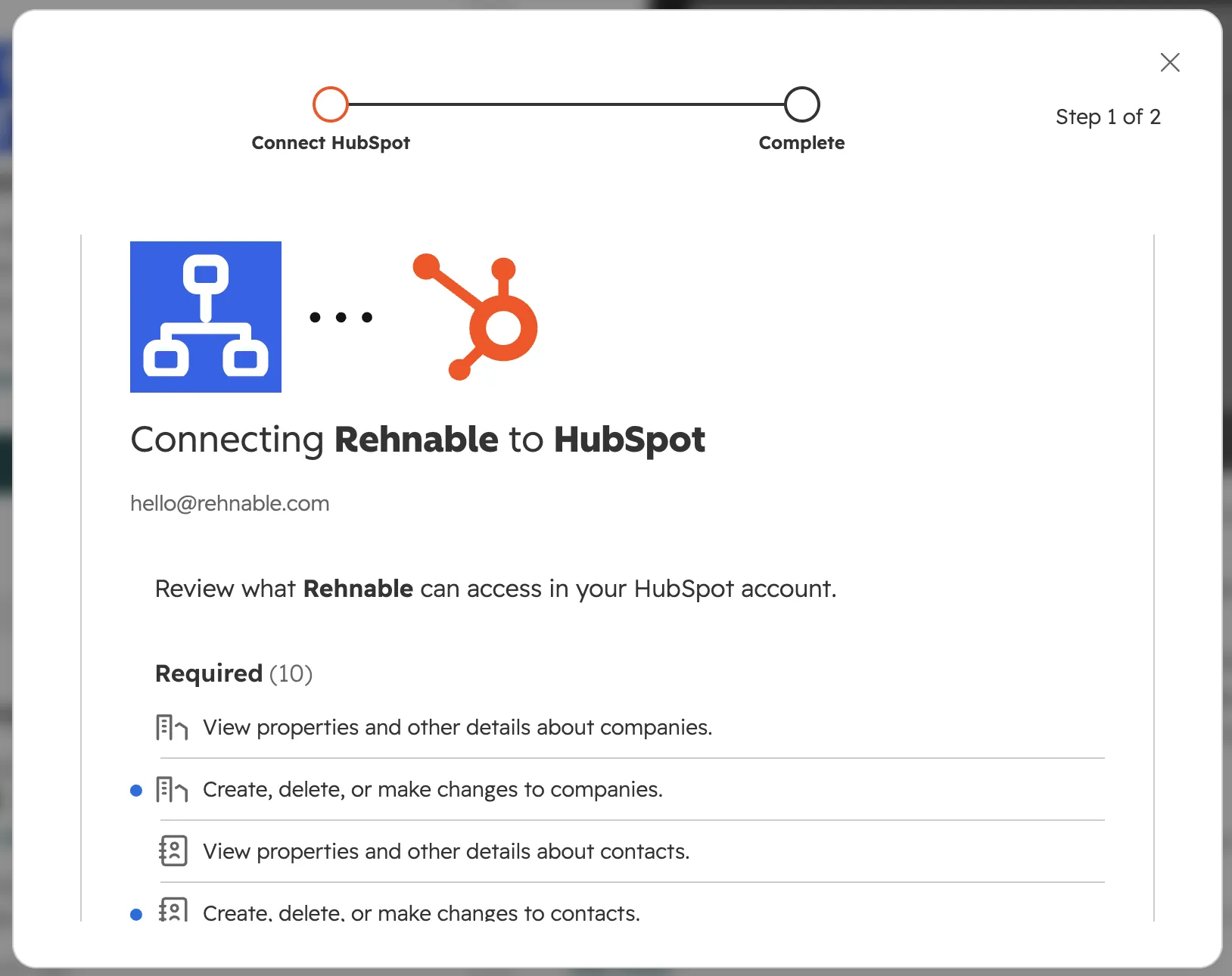
- The ten permissions Rehnable asks for
- Scroll the list to review them all
The full list, with what each permission is used for, is on the Security page.
What gets created in your portal
Installation is not passive. Rehnable bootstraps two things, once, automatically:
- A labelled association pair between contacts — "Manager" and "Direct report". This is how a reporting line is stored. HubSpot allows up to 50 custom association labels between two contact records, so this uses one of them.
-
A contact property called
orgchart_team— a single-line text field holding the team name. Ordinary property, usable in lists, workflows and reports like any other.
Both are idempotent: if they already exist, nothing is duplicated. If they are ever deleted by accident, the next write re-creates them and retries automatically.
One more thing is created later, the first time a user adds a
placeholder (a position you know exists but cannot name yet):
a contact property called orgchart_placeholder, plus a static list
named "Rehnable placeholders" that every placeholder joins automatically.
Placeholders are ordinary contacts — named "Placeholder · <role>", never
given an email address, never marked as marketing contacts (so they cannot count
toward your marketing contacts quota). To exclude them from your own lists,
workflows and reports, filter on orgchart_placeholder = true — or
simply use the "Rehnable placeholders" list. Delete them like any other contact
if you no longer want them.
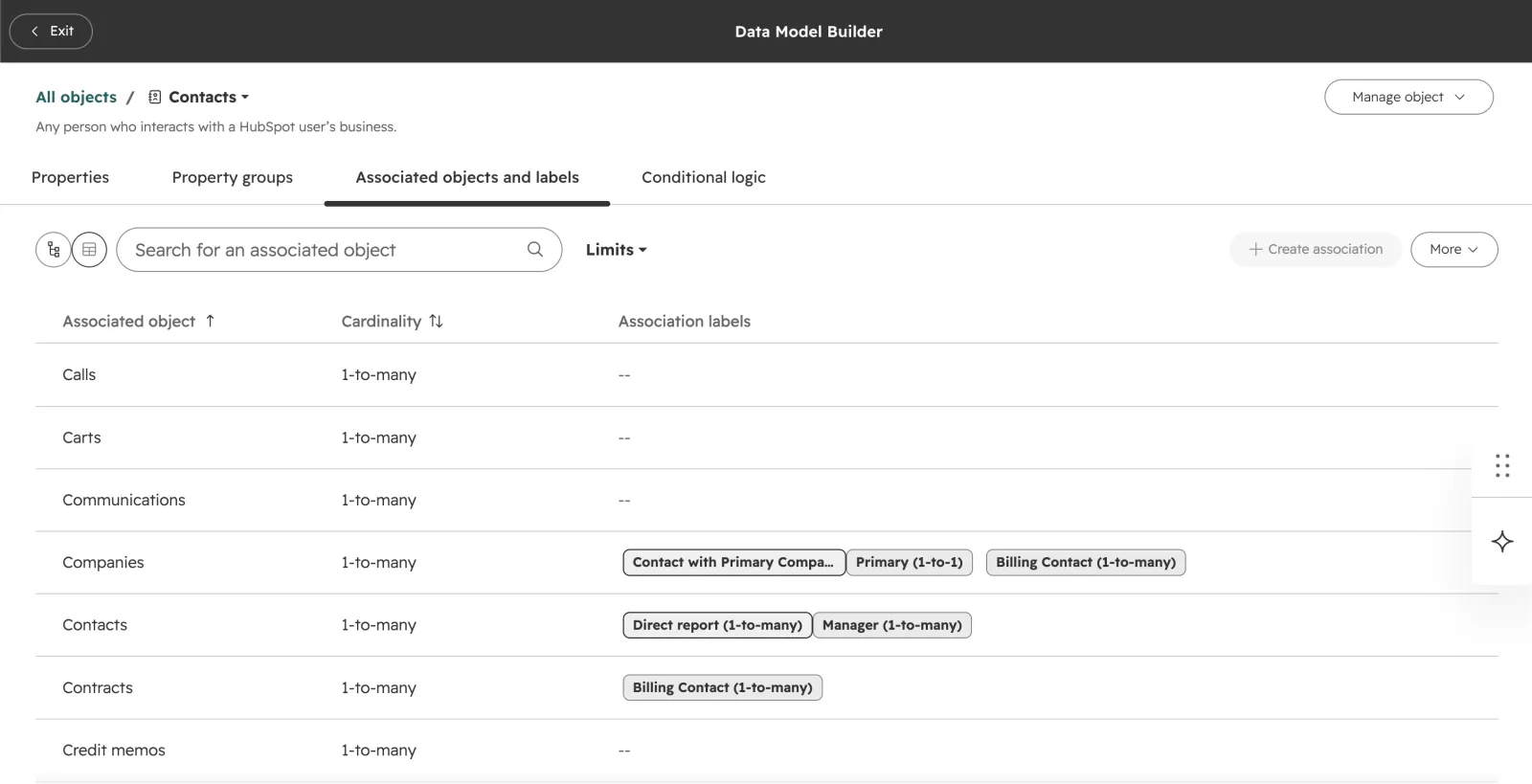
- The Contacts object's Associated objects and labels tab
- The Manager and Direct report pair Rehnable creates
Assign seats
Rehnable is licensed per named user. Open Settings → Seats in the editor and pick the HubSpot users who should have access from your portal's real user list — the same names and email addresses you see in HubSpot's own user settings.
The list shows each user's HubSpot seat, so you can filter to everyone with a Sales Hub seat and assign them in one step, up to your plan's seat count.
Seats are reassignable: when someone leaves the team, take their seat and give it to their replacement. Once you have a subscription, a user without a seat cannot open the editor; during the free trial, everyone in your portal can.
Worth knowing before you hand out seats: anyone with a seat can see every org chart the app can read, regardless of their own HubSpot record permissions. Treat a seat as "may see this account's stakeholders".
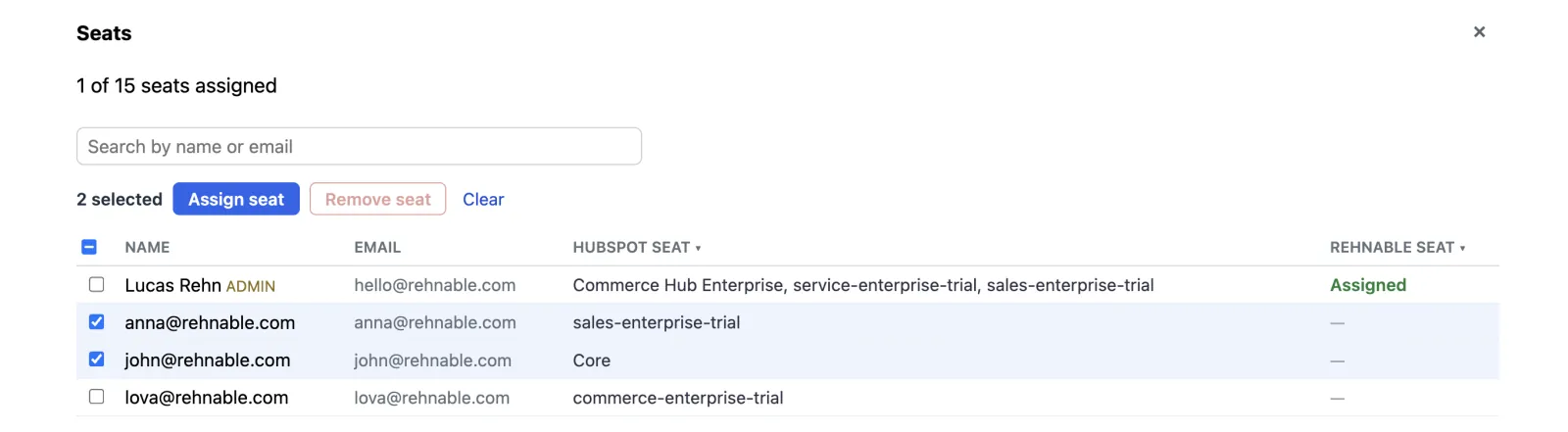
- Tick the users who should have access
- Assign seat
Remove seat works the same way, and asks before it removes anything.
Open your first chart
Go to any company record. The Rehnable card there is deliberately thin — a single line of text and one button, doing no CRM work of its own. Click Open org chart and the chart opens in a window over the record, with everything else happening inside it.
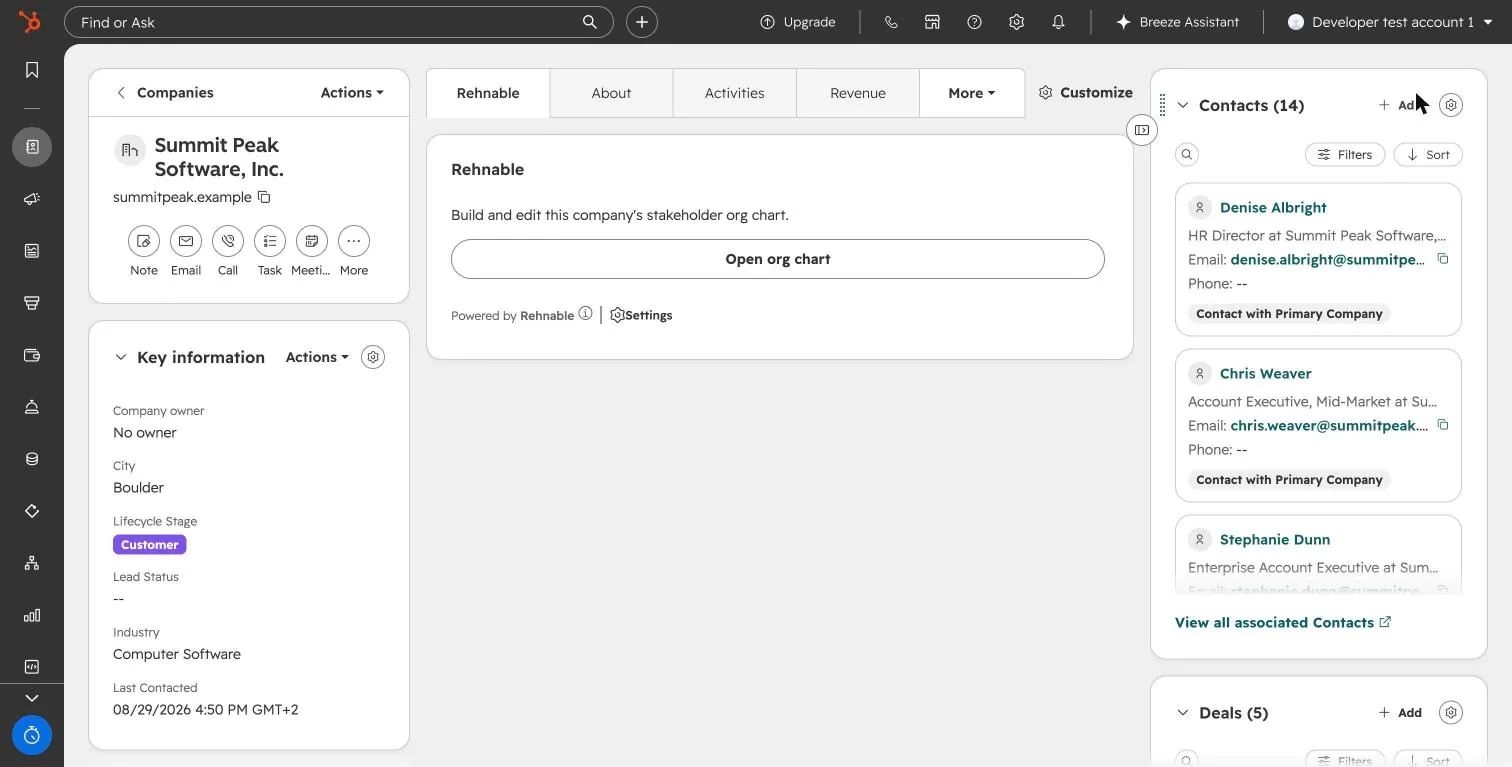
- The Rehnable card on the company record
- Open org chart
The first time you open a company, the canvas is usually empty — that is correct. Rehnable does not invent a hierarchy from job titles; it shows what your CRM actually knows, which on day one is usually nothing. The empty canvas lists the three steps to get going, and the ? button at the top of the editor brings back the quick start and the keyboard shortcuts at any time. Building the chart is steps 5 and 6, and it is faster than it sounds.
Place the right people
The contacts panel on the right lists every contact associated with the company. Search it, select the people who actually matter for this account, and place them on the canvas. Placing several at once is one action.
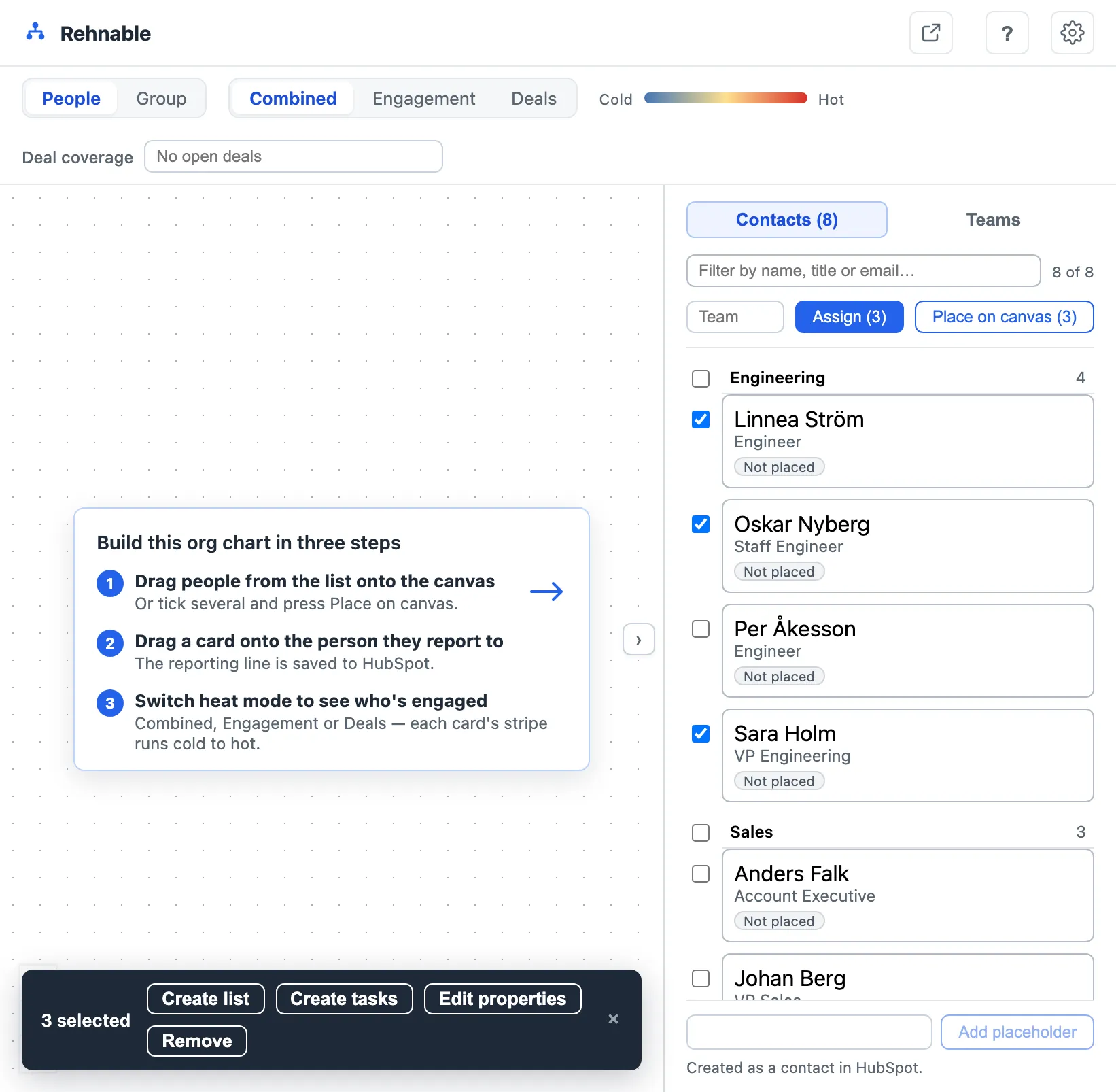
- Tick the people who matter
- Place on canvas
Or drag a single contact from the panel straight onto the canvas.
Placing is view state — it does not write anything to HubSpot. Nothing is committed until you draw a reporting line.
Do not place all 200 contacts. A stakeholder map is a decision about who matters. Start with the buying committee and the people around it; add more when a deal makes them relevant.
Build the reporting lines
Drag a person's card onto the person they report to. That is the whole interaction. The moment you drop, Rehnable validates the move and writes the association to HubSpot. The layout re-flows and the change is live for everyone in your portal.
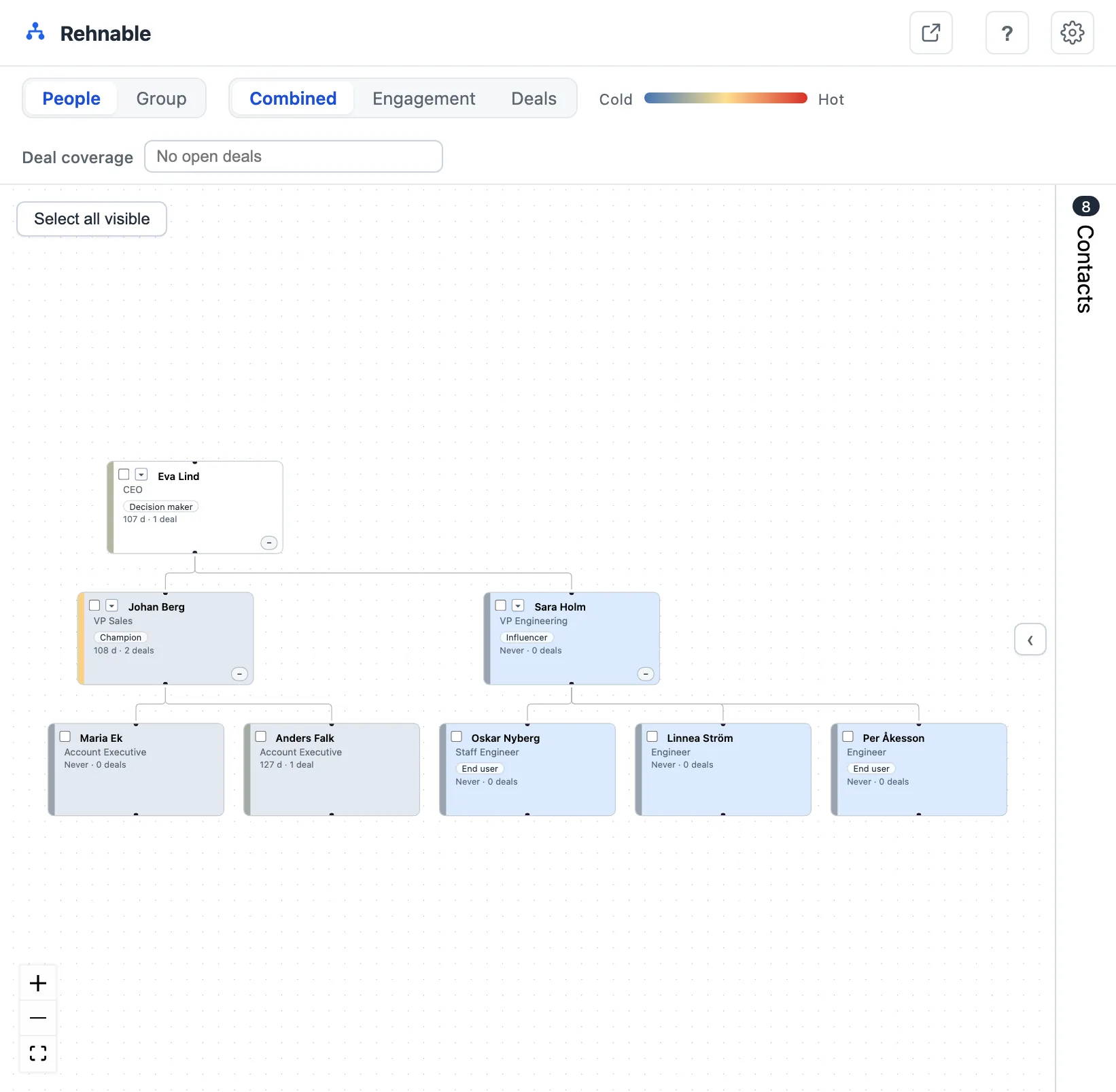
- Drag the person's card
- Drop it on their manager
Drop, and the line is drawn and written to HubSpot in the same moment.
- To move someone to a new manager, drag them onto the new one; the old reporting line is archived and the new one created.
- A HubSpot super admin can choose, under Settings, to remove the unlabeled association HubSpot keeps between a contact and the old manager when a reporting line moves, but only when no other association label connects them.
- The group view works the same way: when you move or detach a company, HubSpot keeps an unlabeled association between the company and its old parent company, and the toast offers to remove it, but only when no other association label connects them.
- To take someone out of their reporting line, tick their card and press Remove in the toolbar (or Backspace). Rehnable asks before it writes, and the contact itself is never deleted.
- To put someone at the very top, such as a new CEO above everyone already mapped, tick a single card that has no manager yet and choose Make top manager: everyone currently at the top then reports to them.
- Dropped a card on empty canvas? It comes loose from its manager, and the message that appears lets you undo it. Its own reports stay under it; a card without reports is marked Not yet connected. A small nudge, a drop that lands on more than one card, or a card that has no manager springs back.
- You cannot create a loop. Dropping a manager onto their own subordinate is refused, on the canvas and again on the server.
- Made a mistake? Cmd/Ctrl+Z, or the Undo button on the toast that appears after each write.
If a write fails halfway, for example after a network drop or a permission problem, Rehnable tells you and shows the real state. It will never leave you with a chart that looks right on screen and wrong in the CRM.
Tag teams
Select the people who belong to the same function — Procurement, IT, Finance, Operations — and assign a team name. Their cards take on that team's colour, so the shape of the buying committee becomes visible across the reporting structure.
Team names are free text, which means consistency is yours to keep. Agree on a short list before you start, because Procurement and Purchasing will be two different teams. Rename or delete a team from the Teams tab and every contact follows.
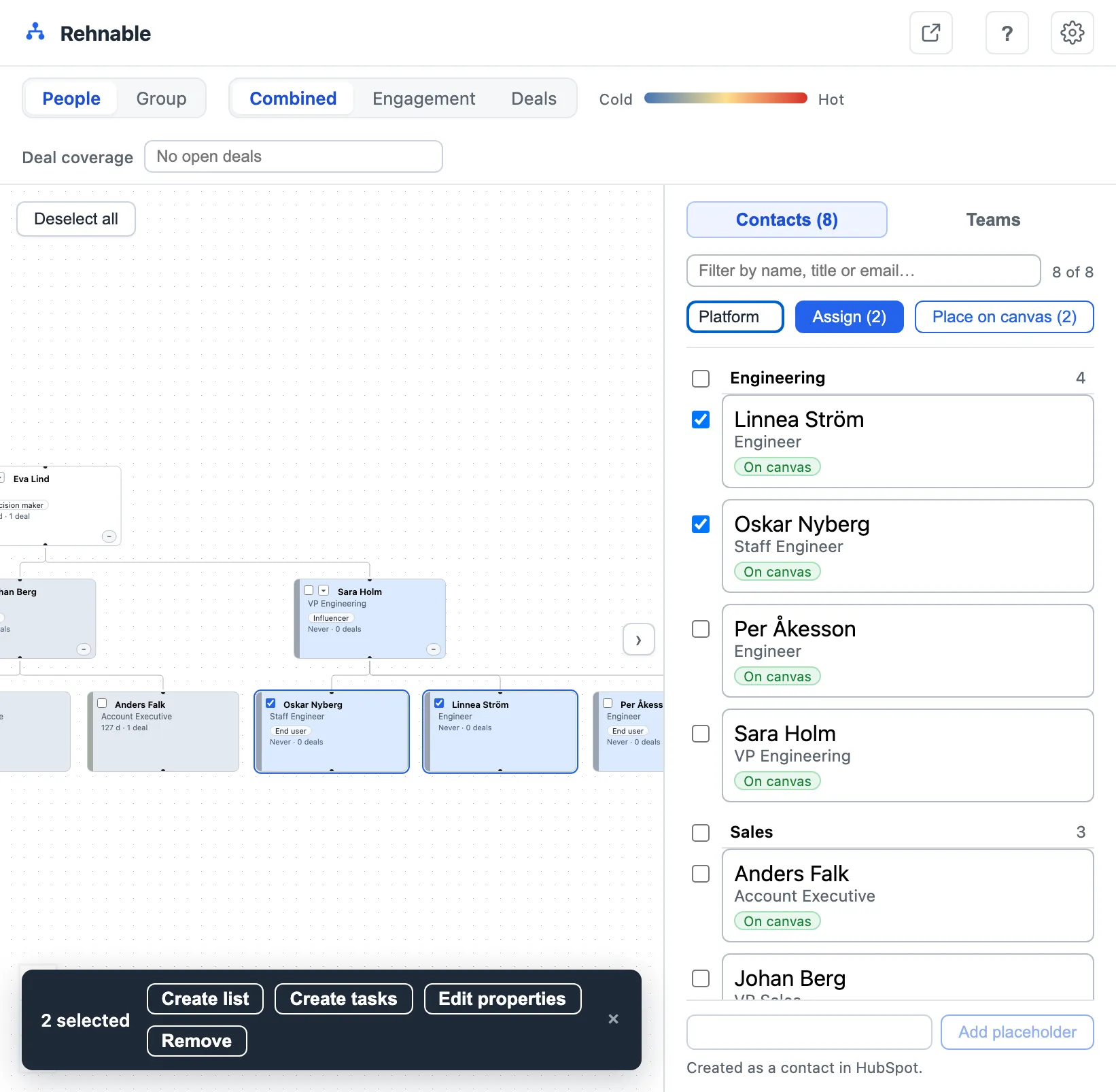
- Tick the team's members
- Type the team name
- Assign
Set a colour per team in the Teams tab if the automatic one is not what you want; the colour applies for everyone in the portal, not just you.
Read the heatmap
Pick a heat parameter in the toolbar above the canvas:
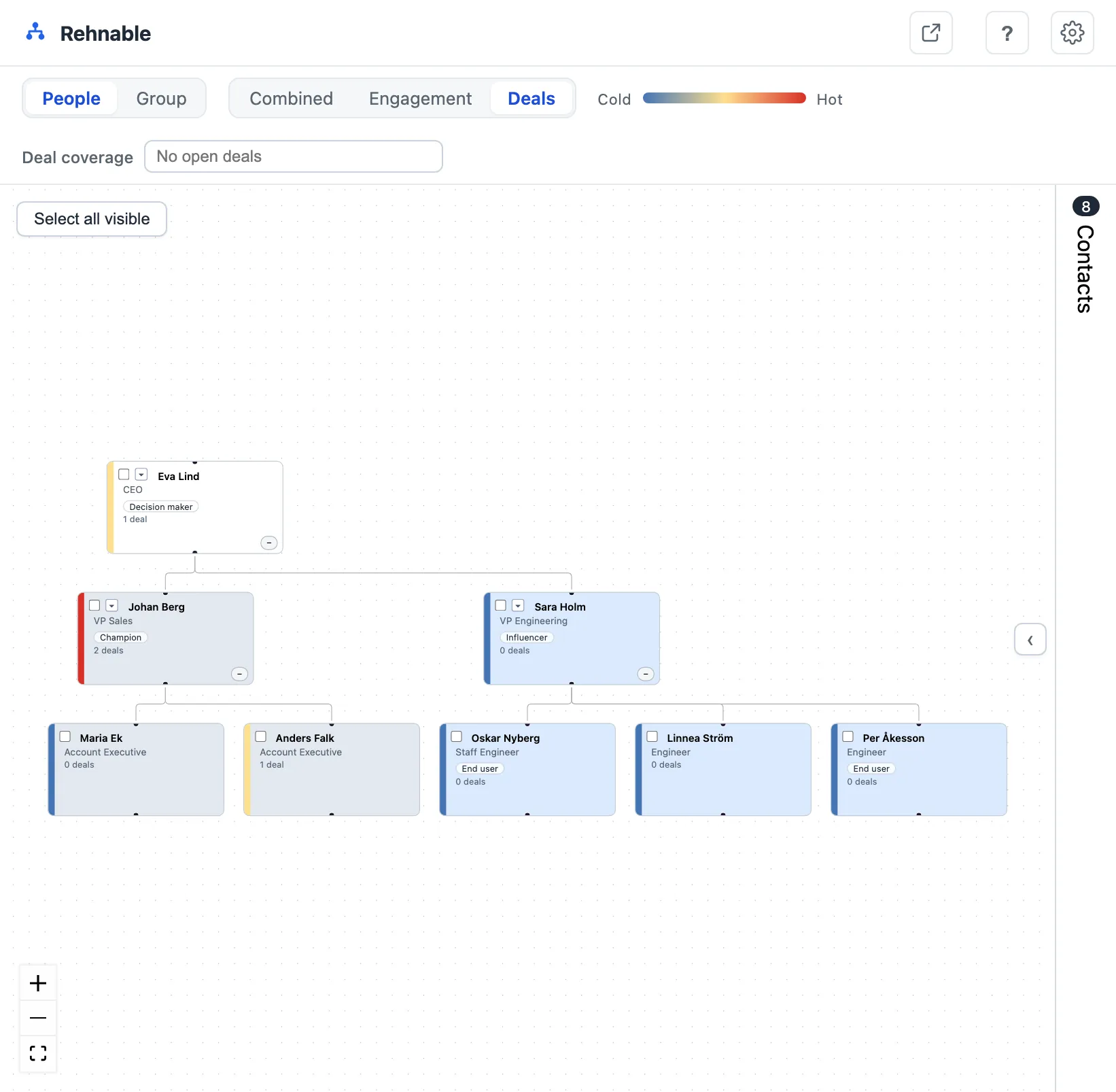
- Pick the heat mode
- The cold-to-hot key
- The value in words on every card
Hover any control, or tab to it, for a one-line explanation.
| Mode | What it measures | Read it when |
|---|---|---|
| Combined | The mean of engagement and deal participation | You want one overall picture — this is the default |
| Engagement | Days since HubSpot's Last contacted date — the last logged call, meeting, one-to-one email, chat or message with the person — over a 120-day window | You are hunting for people going quiet |
| Deals | Number of deals the contact is associated with | You want to see who is commercially involved at all |
Scores are relative to the company you are viewing, not to your whole database. A small account still shows contrast between its warmest and coldest people instead of rendering uniformly cold. And the card states the underlying value alongside the colour — days since anyone contacted the person, or how many deals they are on, whichever the active mode is showing — so you are never guessing what a shade of orange means.
What to look for: a decision maker who is cold, a hot contact who reports to nobody you have mapped, a whole branch of the org with no activity, or one very hot person carrying every deal on the account — the classic single-threading signal.
Act on the selection
Select people — tick the box on their card or in the contacts panel, hold Shift and drag a box around several cards, or use Select all visible — and a toolbar appears with what you can do with them:
- Create a static list — name it, and it exists in HubSpot immediately, ready for a sequence or workflow.
- Create tasks — one per contact, with a shared title, notes, due date, priority, type and assignee.
- Edit properties — set the same value on the whole selection; the picker only offers properties that are actually writable.
- Remove — takes them out of the chart by clearing their reporting lines, after a confirmation; the contact itself is never deleted.
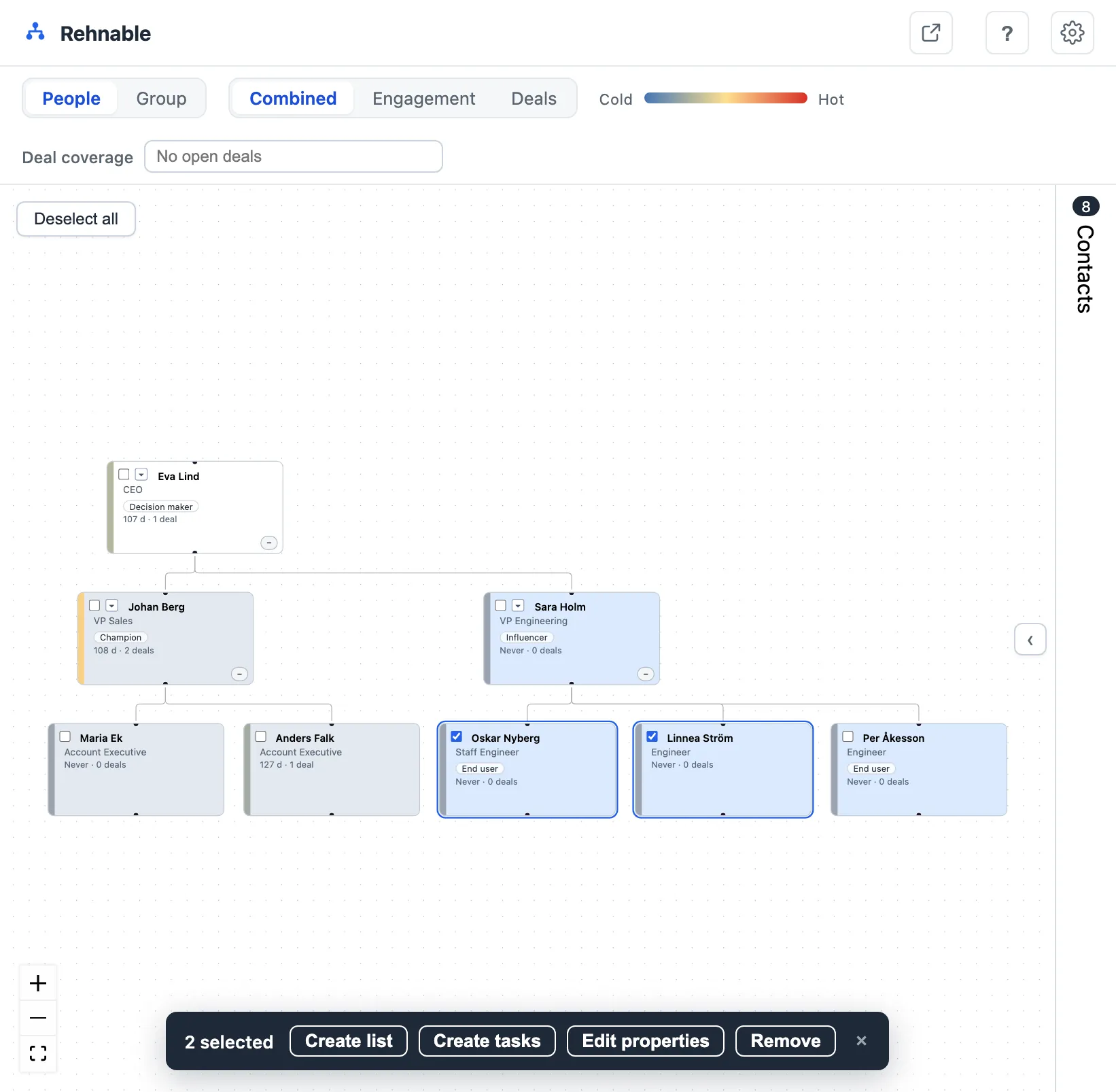
- Tick the cards
- Choose what to do with them
A typical loop: switch to Engagement heat, box-select the cold half of the committee, create tasks for the account owner to re-engage them, done in under a minute.
Work a corporate group
If the account is a group of companies, switch from People to Group. The canvas draws the parent/child company structure that already exists in HubSpot, with each company carrying its own heat from last activity and open deals.
- Click a company to drill into it; use the breadcrumb to come back up.
- Drag a company onto another to set its parent — one parent per company, cycles refused.
- Search for a company that should belong to the group and attach it without leaving the editor.
- Switch to the group's contacts to see people across every company in the structure.
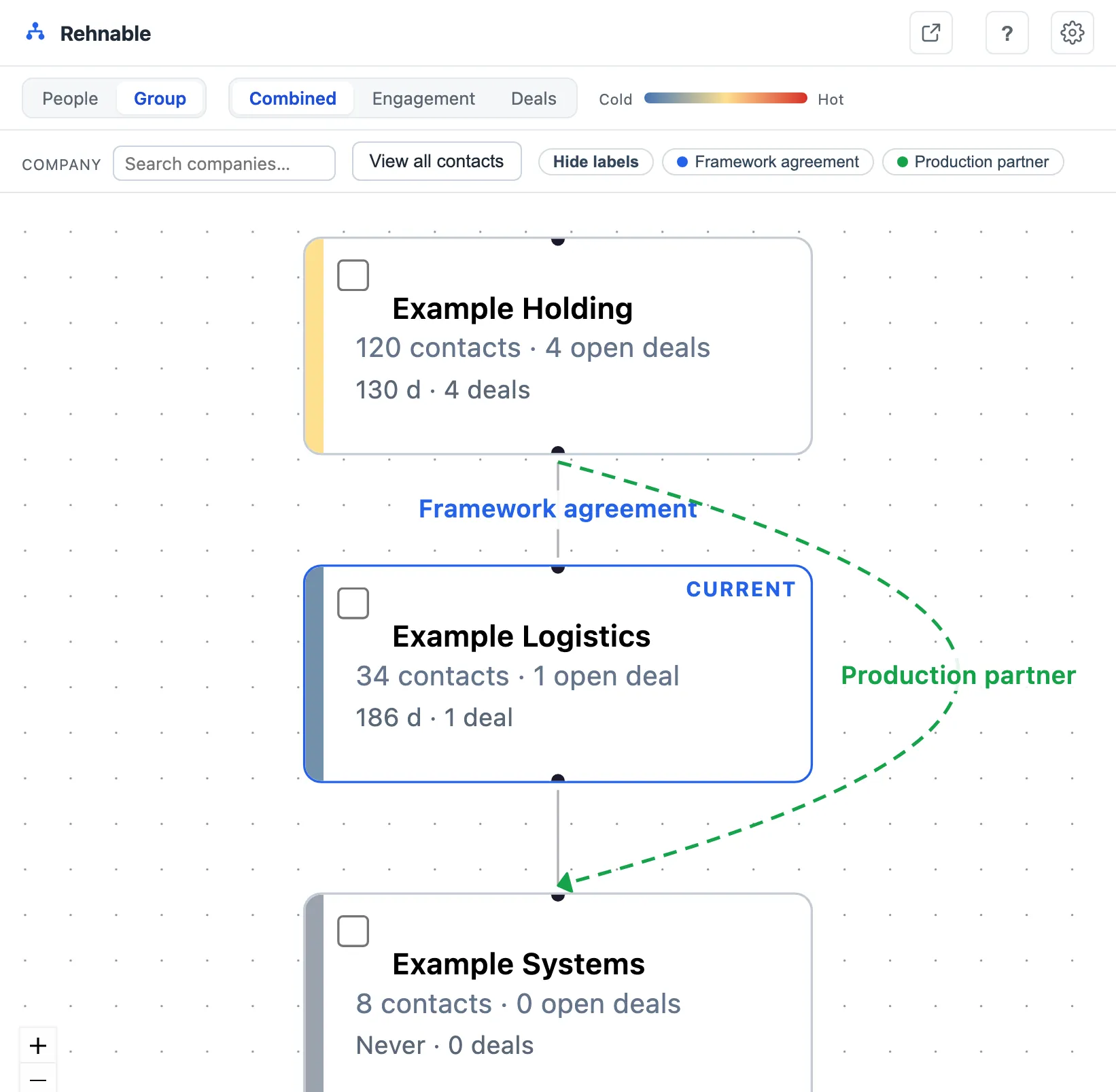
- Switch from People to Group
- Each company carries its own heat
Close, and what persists
There is no Save button, because there is nothing waiting to be saved — every structural change was written when you made it. Close the modal and you are back on the company record.
| Persists in HubSpot | Resets when you close |
|---|---|
| Reporting lines (Manager / Direct report associations) | Which contacts you pinned to the canvas |
| Team assignments on contacts | Collapsed branches |
| Company parent/child changes | Zoom, pan and selection |
| Lists, tasks and property edits you created | The active heat mode |
Team colours, card properties and seats are portal settings — they persist for everyone.
Keyboard shortcuts
| Key | Does |
|---|---|
| Cmd/Ctrl + Z | Undo the last write — a re-parent, a team assignment, a removal |
| Shift + drag on empty canvas | Box-select every card inside the rectangle (a plain drag pans the canvas) |
| Backspace / Delete | Remove the selected cards from the chart (with a confirmation bar) |
| Esc | Close the open panel or dialog, or clear the selection |
| Enter | Confirm the open confirmation bar |
Shortcuts stay out of your way while you are typing — a keystroke in a text field is always just a keystroke. The same list is one click away inside the editor, under the ? button at the top.
Working practices
How teams get value out of this in week one
Map the committee, not the company
Ten well-chosen people beat two hundred contacts. Add the rest only when a deal makes them matter.
Agree on team names first
Write down five or six names before anyone starts tagging. Free text plus five reps equals fifteen variants of "IT".
Make it part of deal review
Open the chart in the pipeline meeting. "Show me who else you are talking to" has a visual answer now — or a visibly empty one.
Use engagement heat before a QBR
Switch to Engagement, select everyone cold, create tasks. It takes a minute and it is the highest-yield habit in the tool.
Re-map after every reorg
Customer reorganisations are exactly when your map is most wrong and most valuable. Dragging four cards is a five-minute job.
Hand over accounts with the chart
When an account changes owner, the org chart is the fastest briefing the new owner will get — and it is already in the CRM they inherited.
Troubleshooting
When something looks wrong
| Symptom | Most likely cause | Fix |
|---|---|---|
| The contacts panel is empty on a company you know has people | The contacts exist but are not associated with the company record | Associate them in HubSpot; Rehnable reads the association, not the email domain |
| Someone is missing from the contacts panel | Same cause — no company association | Add the association, then reopen the chart |
| The editor will not open | Your user does not hold a seat, or the app was uninstalled | Ask an admin to assign you a seat in Settings → Seats |
| A drop is refused | The move would create a reporting loop | Move the subordinate out first, then re-parent the manager |
| A write fails with a permission error | A required permission was not granted at install | Have a Super Admin re-install and approve the full permission set |
| Everything looks cold | No call, meeting, one-to-one email, chat or message has been logged with these contacts in 120 days | That is a finding, not a bug — the account is genuinely quiet |
| Deleted contacts still appear as gaps | A reporting line points at a contact that no longer exists | Rehnable treats it as absent and reports it; re-parent the orphaned reports |
| A colleague's change is not visible | The chart was loaded before their write | Close and reopen the editor to reload from HubSpot |
| An orange banner says Test mode | The editor is running against sample data | Turn Test mode off to work against your real portal |
Still stuck? Email hello@rehnable.com with your portal ID and what you were doing — you are writing to the person who built it.
Ready to map your first account?
A Super Admin installs it from the HubSpot App Marketplace listing, and the chart is one button away on every company record.